
WA Manager Lite 1.0
Help & guides
A practical quick start for WA Manager Lite 1.0.
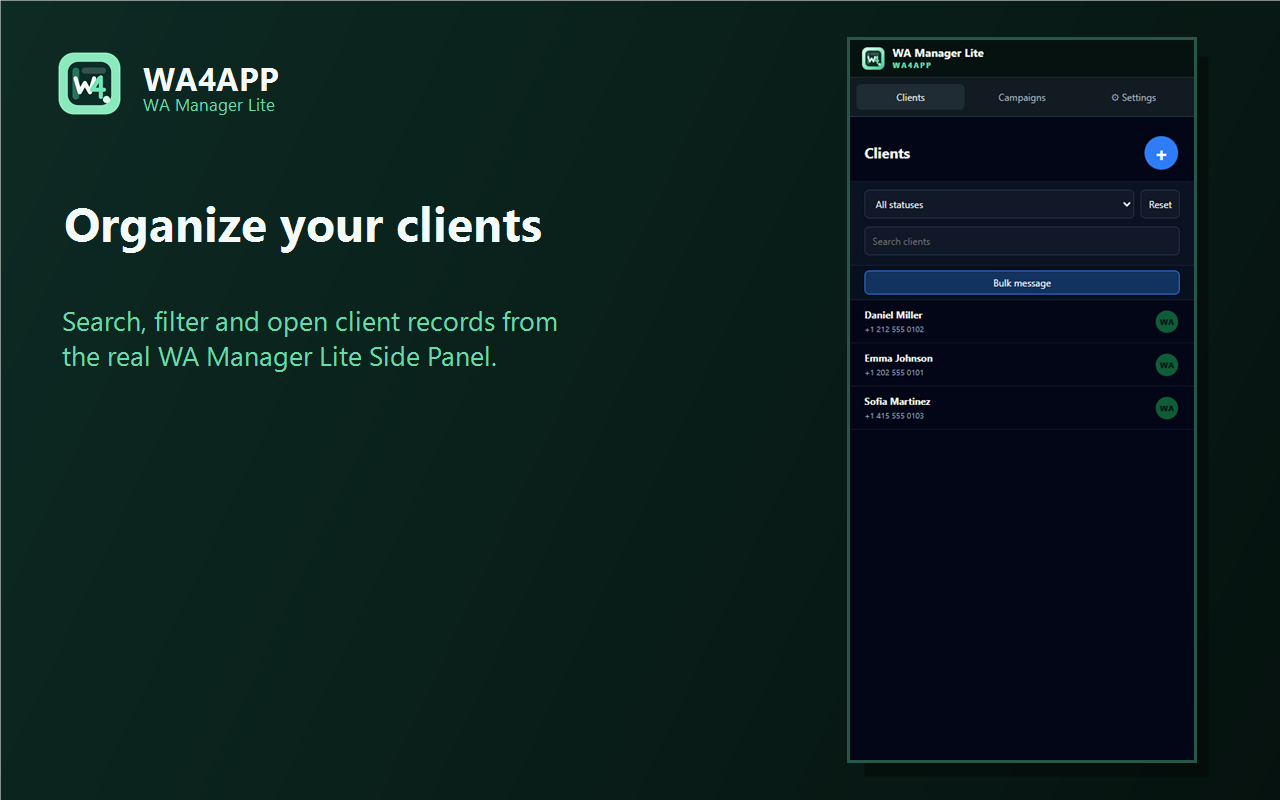
Install and open WA Manager Lite
- Install the extension from Chrome Web Store.
- Open your existing signed-in WhatsApp Web tab.
- Open WA Manager Lite from Chrome and keep the Side Panel beside WhatsApp.
Clients
- Open Clients to search, filter and review your local records.
- Click a client row to open the detail panel.
Add a client
- Click + in Clients.
- Enter a name and phone number, then save explicitly.
- A WhatsApp phone that has no match also offers Add client with the identity prefilled.
Match a WhatsApp chat with a client
- Click a real chat row in WhatsApp Web.
- Lite matches the visible name or phone with local clients.
- A single match is highlighted; multiple matches stay visible at the top.
Custom CRM fields
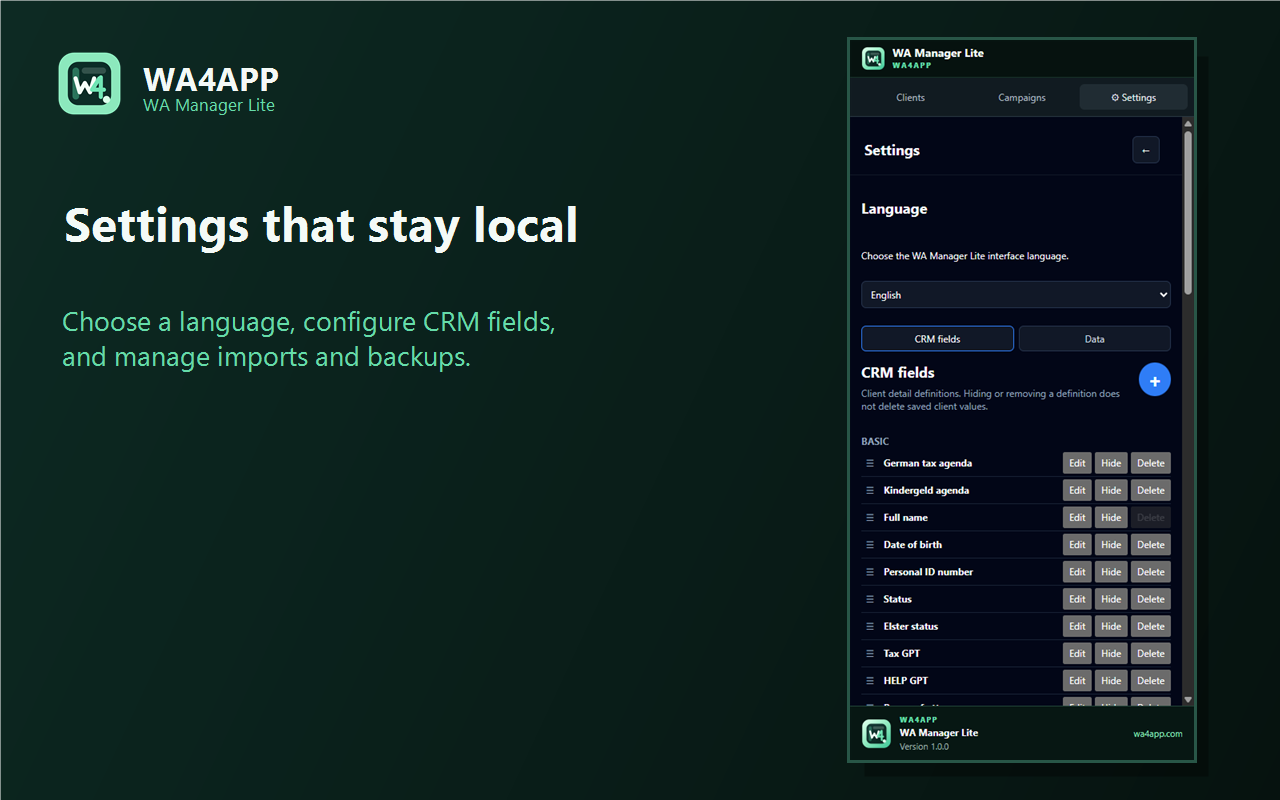
- Open Settings → CRM fields.
- Add or edit fields and choose their detail tab.
- Hiding a definition keeps existing client values.
Search and filters
- Search by client information.
- Use the status filter to narrow the list.
- Reset restores the full client list.
Bulk message / Campaign
- In Clients click Bulk message.
- Select clients and continue to Campaigns.
- Check Selected, Ready and Skipped; expand skipped entries to see the reason.
Personalized message
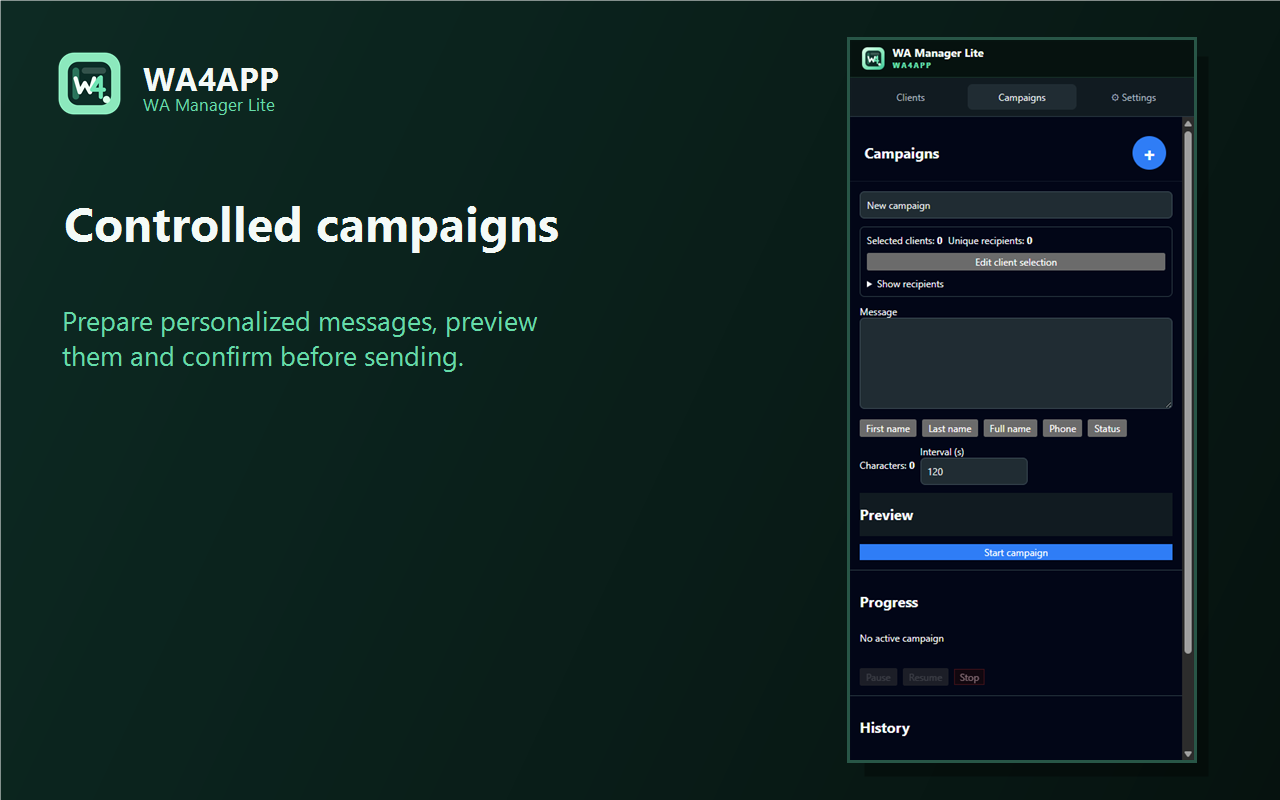
- Write the message in the multiline editor; Enter starts a new line.
- Insert supported tokens such as first name, full name or phone.
- Review the personalized preview before continuing.
Preview and sending
- Confirm recipient counts, previews and the interval.
- Start the campaign and approve the in-panel confirmation.
- Keep Chrome and the signed-in WhatsApp Web tab available while it runs.
Backup / CSV / JSON
- Use Settings → Data to import or export contacts as CSV.
- Create a JSON backup for the complete Lite dataset.
- Restore JSON only when you intend to replace or merge data as shown by the confirmation.
Languages
- Choose English, Czech, German, Polish or Spanish in Settings.
- The selected interface language is stored locally.
Sample contacts
- New installations include clearly marked sample clients with fictional 555 numbers.
- WhatsApp actions and real campaign delivery are disabled for samples.
- Remove sample data from Settings when you no longer need it.
Troubleshooting
- Make sure WhatsApp Web is signed in and the extension is enabled.
- If a recipient is skipped, expand the reason and correct the client phone if needed.
- Create a JSON backup before major data changes.
- If the guide does not solve the issue, contact support@wa4app.com.